
Why Study the Apple Ecosystem?
Tips on Getting Started
Ler em Português →
Why Study the Apple Ecosystem?
Hey everyone, how's it going? I hope you're all doing well. If you're reading this, it's probably because you're interested in learning more about Apple's ecosystem (macOS, iPadOS, iOS, watchOS, and so on).
I created this blog to demystify many of the things people say about macOS and to share my learning journey and research, challenging some of the myths surrounding the operating system. I started this journey a little over four years ago, and I haven't stopped since.
Where to Start: Which Equipment Should You Use?
Let's get started with some tips that will come in handy in your daily routine. I've put together a few options so you can decide which one best fits your situation. And yes, I know buying a Mac in Brazil isn't exactly cheap!
Which option should you choose? If you're just getting started and have a limited budget, first consider whether you really need continuous access to a Mac. To learn the fundamentals, start with official documentation and look for opportunities to use a physical Mac in labs, universities, or study groups. If you need a macOS environment for hands-on research, compare the total cost, minimum rental period, and access conditions of cloud services before committing.
You basically have two options to get started:
- Option A — Your own physical Mac.
- Option B — A Mac in the cloud.
- MacStadium
- AWS EC2 Mac
- MacinCloud
- UltaHost
Note: These services may charge by the hour or by subscription period, and machine availability varies depending on the provider and plan.
Getting to Know macOS
When it comes to using the operating system, did you know there's a Mac user guide? That's right, you read that correctly: there's an actual manual to help you learn how to use the system, haha. Here's the link!
And you know what's really cool about this guide? If you've been a Windows user for ages (like I was), it offers some pretty useful tips on moving from one operating system to another, learning keyboard shortcuts, and figuring out where things are.
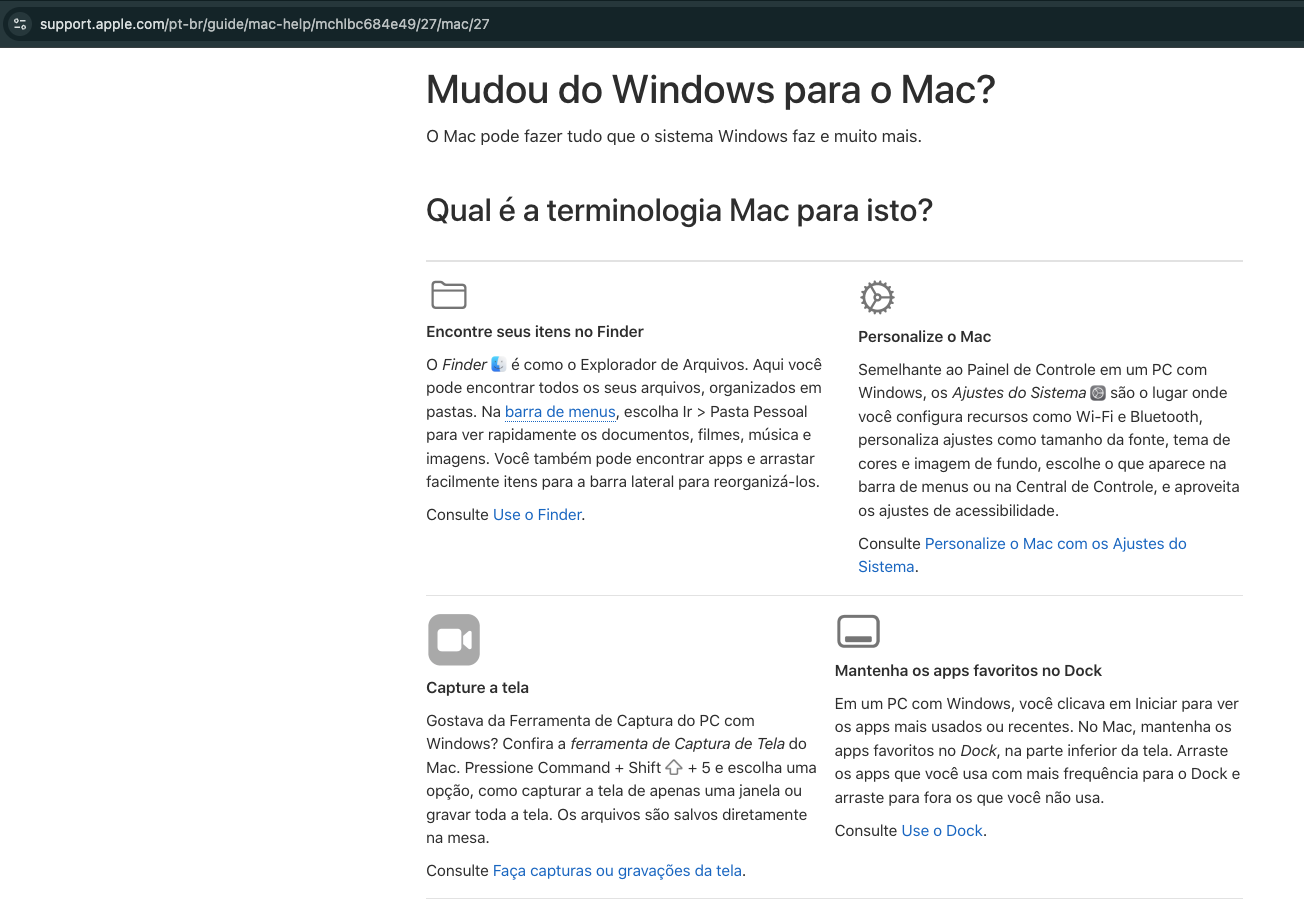
Another great thing to learn, especially when you're starting out, is keyboard shortcuts. They make a huge difference in your daily workflow! Here's Apple's official guide for you to check out.
FAQ: Getting Started with macOS
What are the main differences between Windows and macOS?
On Windows, you typically use the Start menu, taskbar, and File Explorer to access and manage your files. On macOS, the main components are:
- Dock: Gives you quick access to your favorite apps and lets you see which apps are running.
- Finder: The file manager, equivalent to File Explorer on Windows.
- Menu bar: Located at the top of the screen, it changes depending on the active application.
- Spotlight: A search tool that lets you find files, launch apps, and perform calculations.
- System Settings: Centralizes your computer's settings.
Note: One important difference is that closing a window in macOS doesn't always quit the application. The app may continue running even when no windows are open.
Tip: Press Command (⌘) + Space to open Spotlight and quickly search for apps, files, and settings.
How do I use Finder instead of File Explorer?
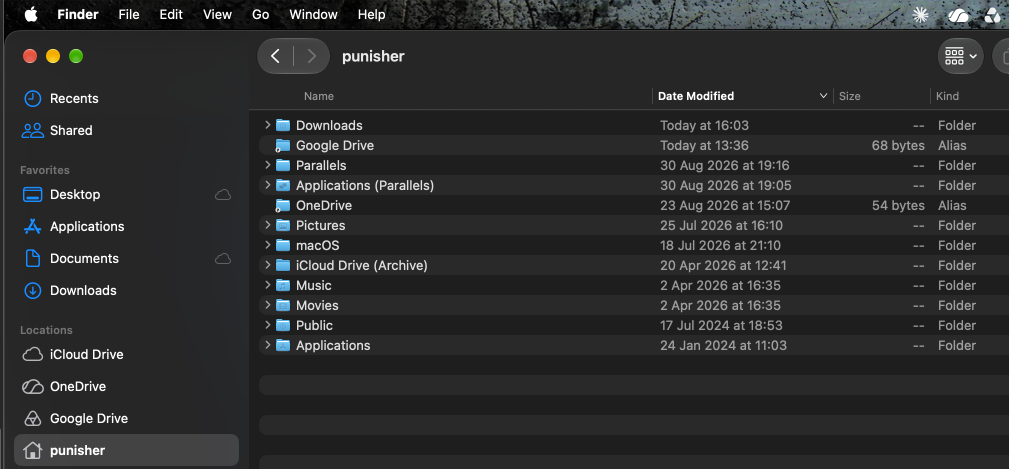
Finder is the application used to organize and access files and folders on your Mac. You can open it by clicking the blue smiling face icon in the Dock.
With Finder, you can:
- Create folders and organize documents.
- Copy, move, rename, and delete files.
- Search for documents by name.
- Access Downloads, Documents, Pictures, and other directories.
- Browse USB drives, external disks, and network shares.
Useful Finder Shortcuts
| Action | Shortcut |
|---|---|
| Open a new window | ⌘ + N |
| Create a new folder | Shift + ⌘ + N |
| Copy a file | ⌘ + C |
| Paste a copied file | ⌘ + V |
| Move a file after copying it | Option + ⌘ + V |
| Rename a selected file | Return |
| Show or hide hidden files | Shift + ⌘ + . |
| Open the Downloads folder | Option + ⌘ + L |
Which keyboard shortcuts should I learn first?
| Action | Windows | macOS |
|---|---|---|
| Copy | Ctrl + C | ⌘ + C |
| Paste | Ctrl + V | ⌘ + V |
| Cut text | Ctrl + X | ⌘ + X |
| Select all | Ctrl + A | ⌘ + A |
| Save | Ctrl + S | ⌘ + S |
| Undo | Ctrl + Z | ⌘ + Z |
| Switch between apps | Alt + Tab | ⌘ + Tab |
| Search | Win + S or system search | ⌘ + Space |
| Take a screenshot | Win + Shift + S | Shift + ⌘ + 5 |
| Quit an app | Varies by application | ⌘ + Q |
There are differences between applications, and some shortcuts don't have an exact equivalent.
Tip: Start by learning the shortcuts for copying, pasting, saving, searching, and switching between apps. They'll make a big difference in your daily workflow.
How do I install and uninstall apps on a Mac?
There are different ways to install applications on macOS. The two most common methods are through the App Store and from developers' official websites.
Using the App Store:
- Open the App Store.
- Search for the app you want.
- Check the developer information and system requirements.
- Click to get or install the app, following the instructions displayed.
Okay, I've shown you how to install apps through the App Store. But what about files downloaded from the internet? Don't worry, I've got you covered, haha!
You may come across files with extensions such as .dmg and .pkg.
- .dmg: Usually opens a disk image containing an application or installer. In many cases, you simply drag the app into the Applications folder.
- .pkg: An installation package that launches a setup wizard to install software components.
How do you uninstall an app?
For applications installed using the conventional method:
- Open Finder.
- Go to the Applications folder.
- Locate the app.
- Drag it to the Trash or use the available removal option.
Note: Not every application can be completely removed simply by dragging it to the Trash.
Some applications have their own uninstallers and may install services, extensions, or additional components. In these cases, follow the removal procedure recommended by the developer.
Security warning: Don't install applications from unknown sources just because a website offers a free download. Verify the software's origin and pay attention to macOS security warnings. Don't disable system protections without understanding the risks.
Where is the Control Panel in macOS?
On a Mac, the closest equivalent to the Windows Control Panel is the System Settings app.
There, you'll find settings related to:
- Wi-Fi and network connections.
- Bluetooth and external devices.
- Keyboard, mouse, and trackpad.
- Displays and screen resolution.
- Notifications and appearance.
- Privacy and security.
- Users, passwords, and login options.
- Battery, storage, and software updates.
In addition to these, you'll find many other settings you may need to adjust in your daily routine.
What I've Learned Along the Way
Learning to use macOS doesn't mean abandoning everything you know about Windows. It means adapting your knowledge to a new interface and discovering tools that can make your work more efficient.
Nobody needs to master everything at once :). The best way to learn is to practice, research, experiment, and sometimes learn things the hard way, haha.
Along this journey, I also realized that sharing knowledge and exchanging experiences can open doors that go far beyond individual learning.
Now, Let's Talk About Study Groups :)
One thing I've always valued throughout my career is the opportunity to learn from more experienced professionals and share what I've learned along the way.
In 2025, I had my first experience presenting research on macOS malware at a Village that had just been launched: the Apple Red Team Village.
The Apple Red Team Village was founded by two outstanding professionals in the field, Ricardo L0gan and Roberto Soares (Espreto). The community's goal is to share knowledge about vulnerability exploitation, Red Team, Blue Team, and digital forensics, with a focus on the Apple ecosystem.
Long story short: I volunteered to help and, at the guys' invitation, became a member! 👊🏻
So here's a tip: follow the community on Instagram!
We also have a Discord server, where we'll soon start hosting online events.
And finally, here are a few professionals who are part of the Village and whom I recommend following as well. ;)